Versions issued before this change show only the total, as they did. Issue a new version to show the rates.
The lines you see
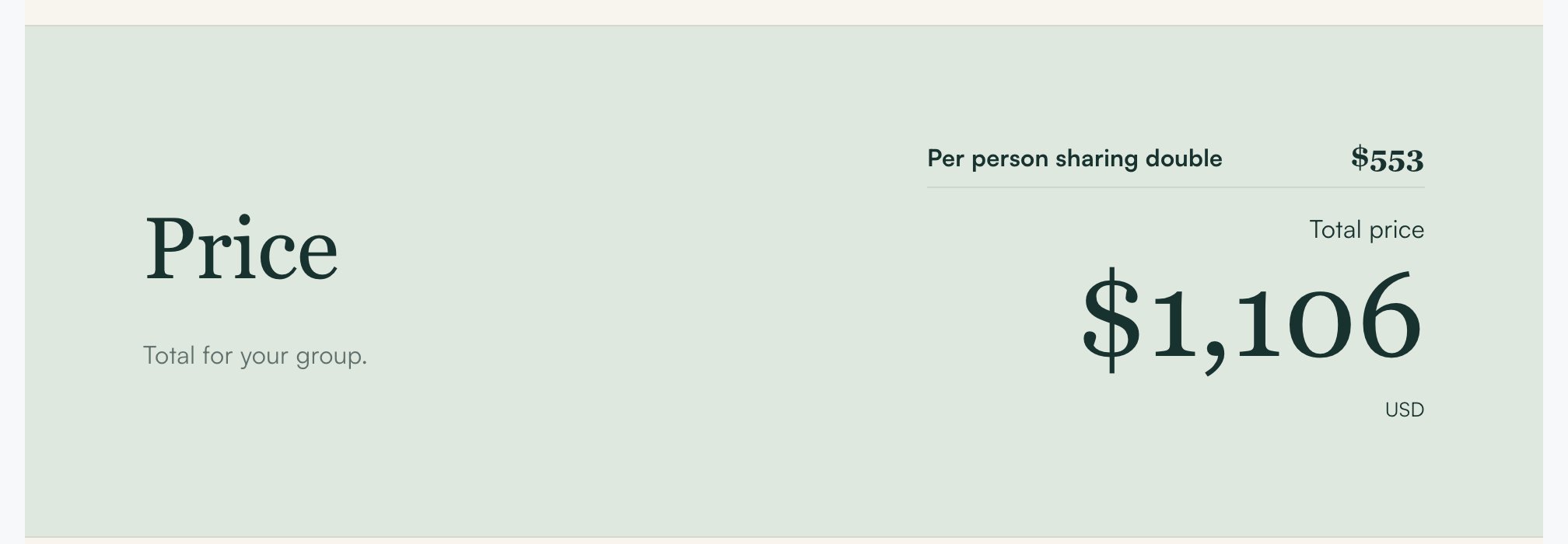
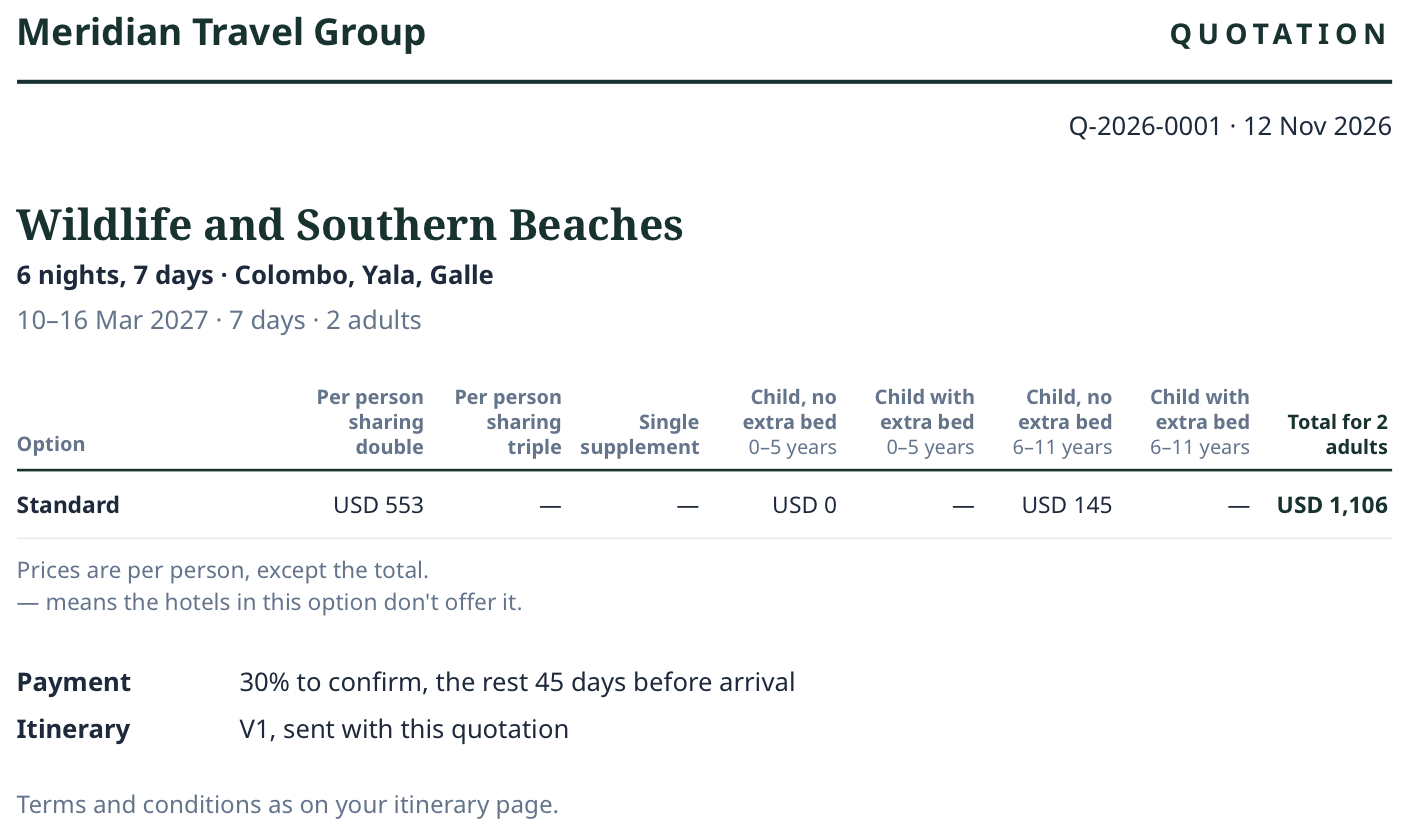
The Price section of the customer page shows only the lines the trip has.- Per person sharing double – the first line, and the largest one. It always shows.
- Per person sharing triple – only when the trip has a triple room.
- Single supplement – what one adult pays on top, for a room alone. Only when the trip has a single room.
- Child, no extra bed – with the ages, for example 2–5 years. Only when a child is travelling.
- Child with extra bed – with the ages. Only when a child is travelling.
- Total price – under the rates. It is what this group pays. On the Quotation PDF the column is called Total for 2 adults.
How each figure is made
- Double: each hotel’s double room for every night, divided by two. Then the car, guide, entries and extras, shared across the adults. Then your margin and taxes, as in Costing.
- Triple: the same, with each hotel’s triple room divided by three.
- Single supplement: the single room minus half a double, for every night.
- Child: the hotel’s own child price for each age band, for every night, plus the child’s own entries.
A dash instead of a price
A line shows — when a hotel in that option has no price for it. Localflow does not guess. A note says: ”— means the hotels in this option don’t offer it.” The note shows only when a line on the page shows —. If the hotels have different child ages, each age band is shown only where every hotel has a price for it.When a hotel’s single price is missing
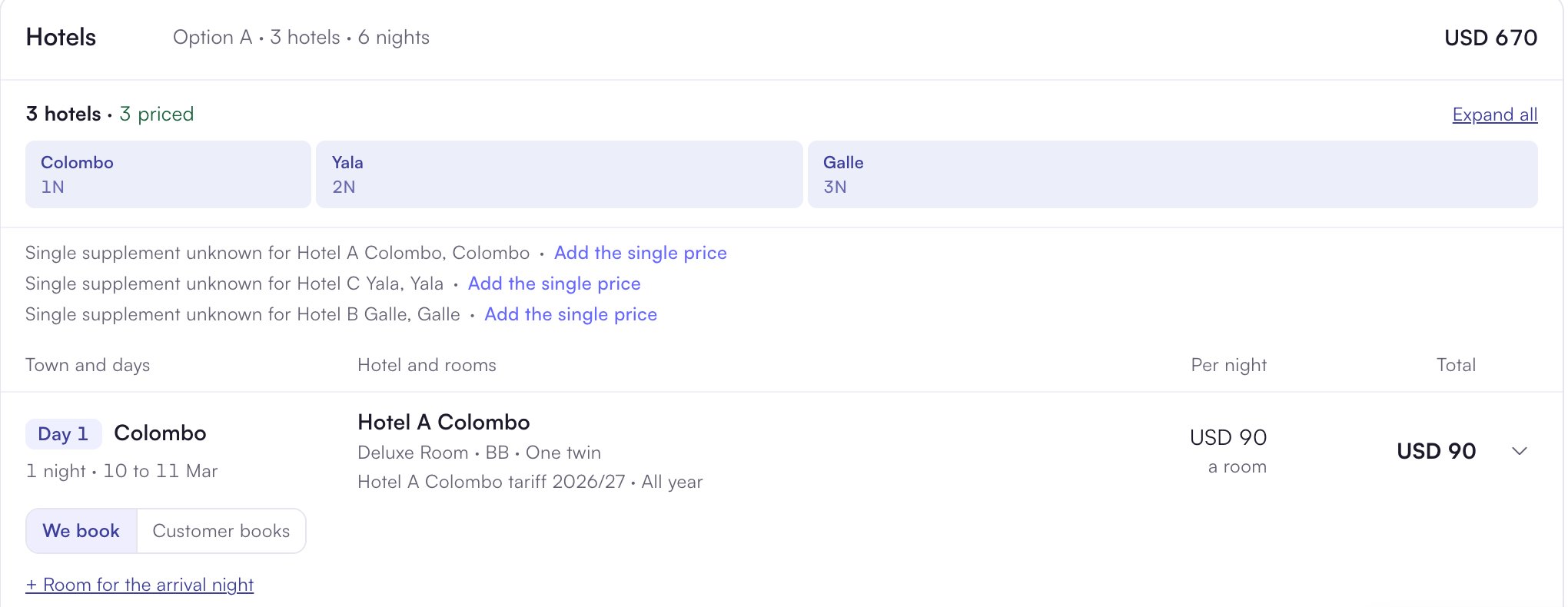
Most hotel price lists give a single and a triple price, and those fill in by themselves. If a price list does not, or you typed the hotel in by hand, Costing asks once.1
Open Costing
Open the trip and go to Costing. Choose the option.
2
Find the note
Look for Single supplement unknown for the hotel and town, for example “Mandara Resort, Mirissa”.
3
Add the price
Click Add the single price. Type the hotel’s price for a room for one adult, for one night. Press Enter.
4
Done
The note goes away. Costing saves by itself. The price is kept on that stay and used for every version from then on.
This price changes only the Single supplement line. It never changes a total.