After the customer says yes, the trip is Booked and Operations holds a copy of it. You can still change the trip in Localflow, for example add a night. Localflow then shows what changed since the booking, so Operations can update the suppliers.

Make the change

1

Change the trip

Change the route or the costing as usual. For example, add a day on Route.
2

Save and issue

Press Save costing if you see it. Then issue a new version in Review & issue. See Issue a new version.
3

Read the change card

In Review & issue, the card Changed since it was booked lists each change and the new Customer price.
4

Send to Operations

Click Send to Operations. The card says who checks it before Operations gets it.
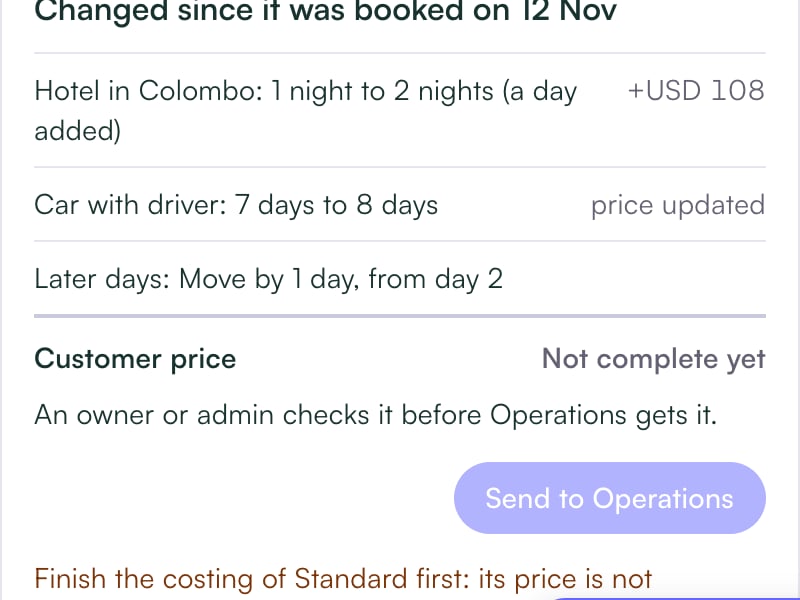
The Changed since it was booked card listing the hotel, car and day changes, the customer price and Send to Operations
Send to Operations stays greyed out until every option is fully priced. You see, for example, “Finish the costing of Standard first: its price is not complete.”

Who checks the change

  • A small change: the card names who checks it, for example “An owner or admin checks it before Operations gets it.”
  • A big change: the traveller must agree first, then an owner or admin checks it. Click Why? on the card to see your company’s limit, for example “Over 5% or USD 500”.
After the check, the card says “Operations has it”. In Operations, the change waits on the Changes tab until someone clicks Mark the change as applied.
Supplier services that were already confirmed go back to “ask” when their dates change.

Booked by mistake?

Under the status line, click Undo the booking. The trip goes back to Sent and leaves Operations. Once Operations or Finance has started, use Cancel in Operations › instead.