

Set or change the first day
1
Open the date picker
Click the dates in the trip header, for example 10–16 Mar, or Dates not set. The box When do they travel? opens.
2
Pick the day
On Exact day, click the first day. To give only a month, use Month only.
3
Read the price check
Localflow shows Dates will move to the new day, how many prices stay the same and how many change.
4
Choose
Click Update prices and set first day to use the new hotel prices. Or Set first day only to keep today’s prices. Keep the day closes it with no change.
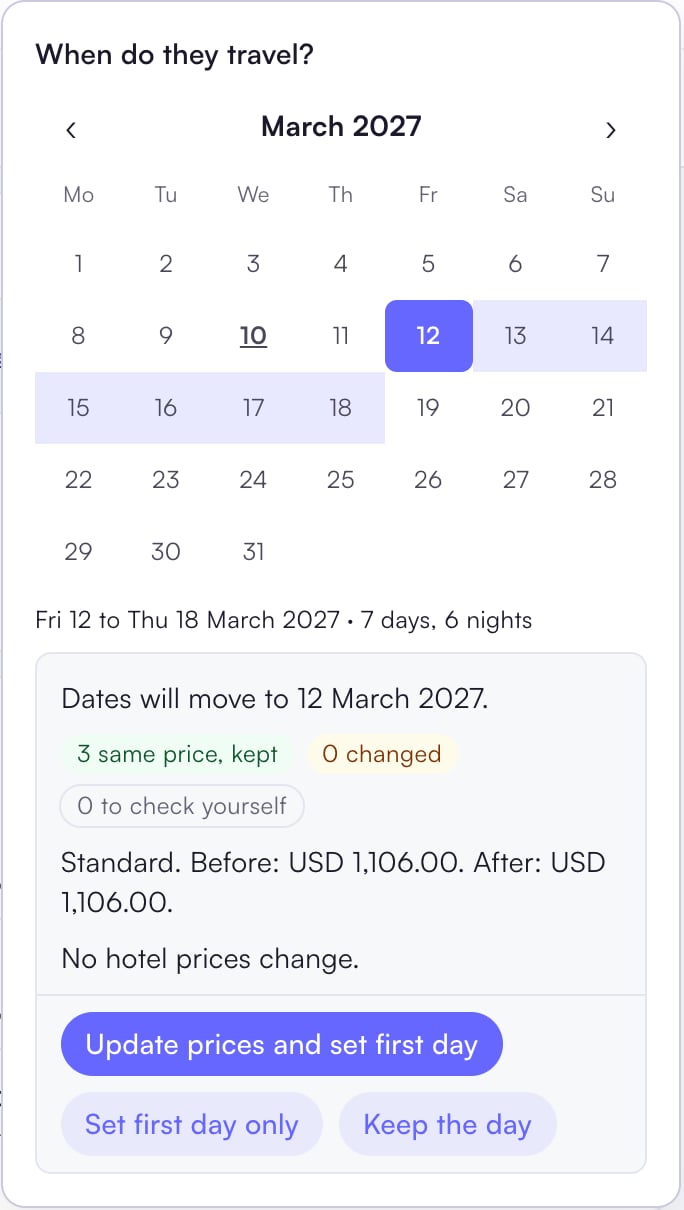
Hotels priced from their price list move to the new season’s price. A price you typed yourself stays as typed, under Kept as typed.
Check the vehicle after a date change
When the trip’s days change, the vehicle asks you to confirm the distance. The vehicle line shows Not priced until you answer.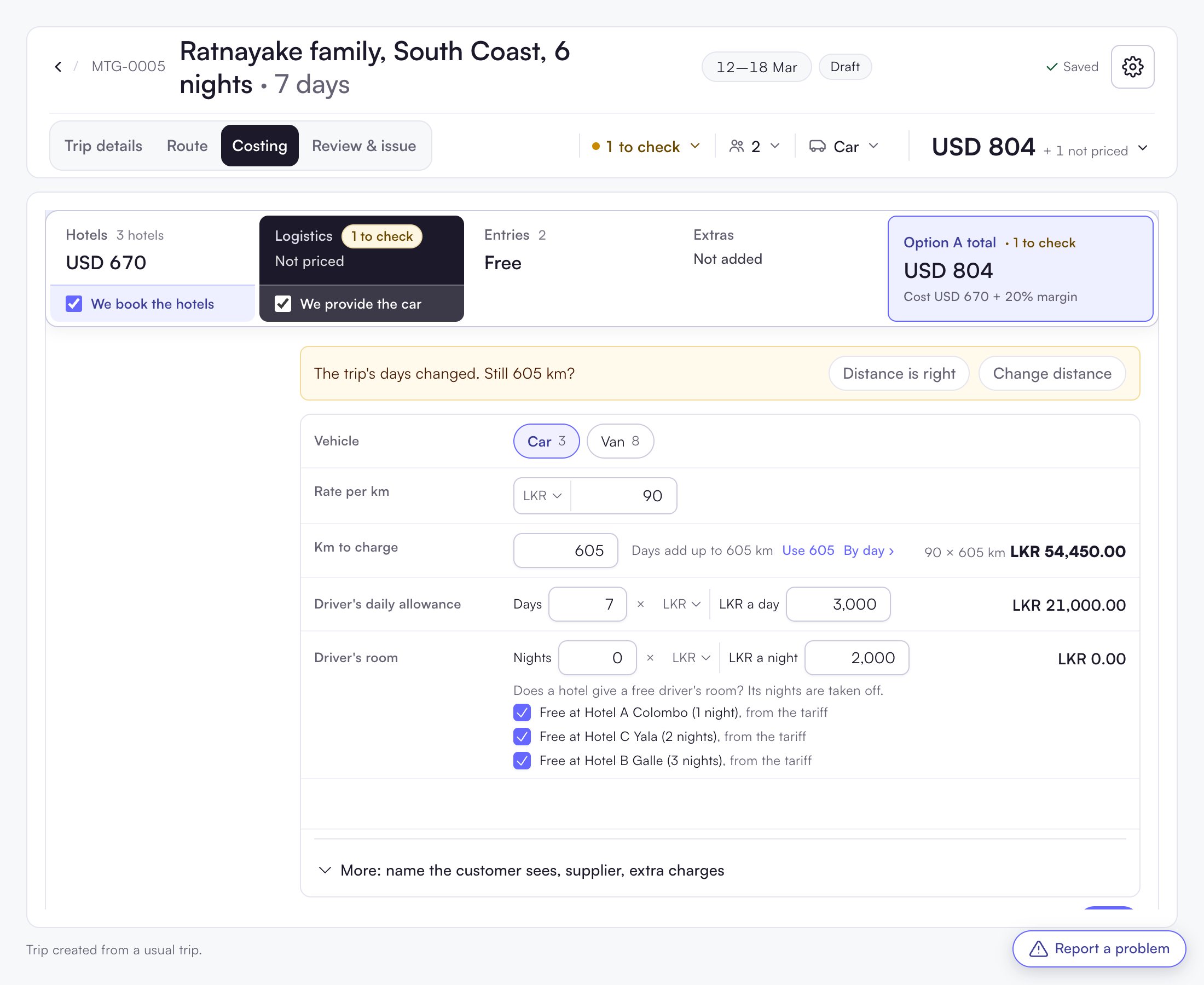
- Open the vehicle line in Costing (or click 1 to check in the header).
- Click Distance is right, or Change distance.